
USB 3.0, now officially grouped under USB 3.2 Gen 1 (also marketed as USB 5Gbps), has a theoretical signaling rate of 5 Gbps against USB 2.0's 480 Mbps, and it delivers more power to the device it's plugged into. That doesn't automatically make it the right choice for your order, though. USB 2.0 still handles small promotional files, documents, and standard business gifting just fine, at a lower cost per unit. USB 3.0 earns its higher price when the drive needs to move large files quickly, such as training videos, high-resolution photo sets, or software packages, or when copying happens often enough that a slow interface becomes the bottleneck.
The number on the spec sheet only tells you the theoretical ceiling, not a guaranteed result. What actually determines how a drive performs is a combination of the interface, the flash memory chip inside it, and the controller managing both, which is why two drives labeled "USB 3.0" can perform noticeably differently. Treat the specific speed figures below as planning ranges to size an order against, not a performance promise, and confirm tested numbers for your exact model before production.
What actually separates USB 2.0 from USB 3.0
Both are data transfer standards for the same USB connector family, but they differ in four practical ways: speed, power delivery, physical markings, and compatibility.
Speed and naming. USB 2.0, formally "USB 2.0 High-Speed," has a theoretical maximum of 480 Mbps (about 60 MB/s), per USB-IF's USB 2.0 specification documentation. "USB 3.0" is the buyer-facing term still used across most spec sheets and search queries, but under USB-IF's current USB 3.2 naming, it's formally USB 3.2 Gen 1, sometimes marketed as USB 5Gbps, with a theoretical signaling rate of 5 Gbps (about 625 MB/s). This guide uses "USB 3.0" throughout since that's still how most buyers search and specify it, but the two terms describe the same protocol. Real-world flash drives never reach either ceiling; flash memory chips and controllers are the actual limiting factor, not the interface. More on that below.
Power delivery. USB 2.0 supplies up to 500 mA. USB 3.0 / USB 3.2 Gen 1 supplies up to 900 mA, which matters more for devices drawing power through the port than for typical flash drives.
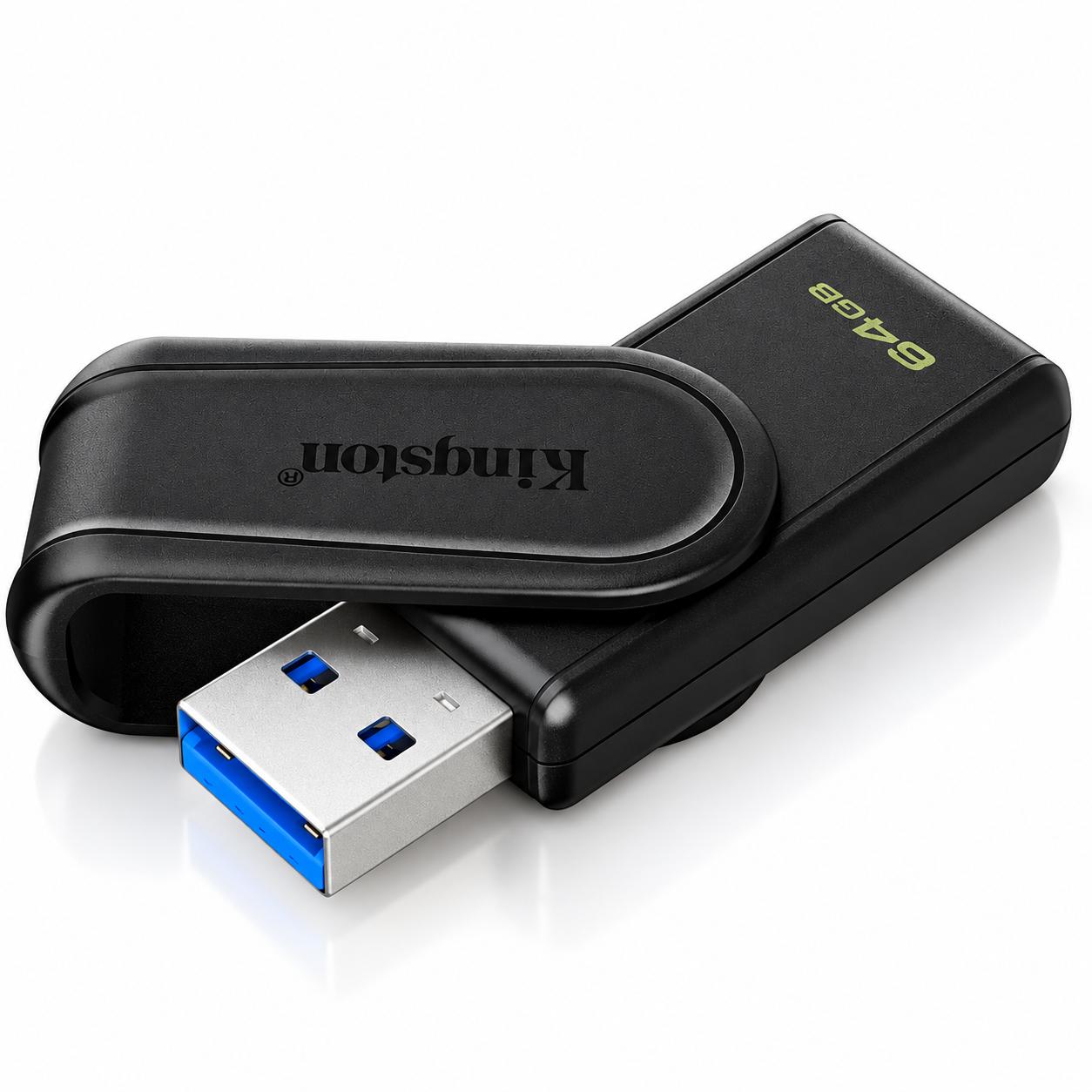
Physical markings. On Type-A connectors, USB 3.0 ports and plugs are conventionally marked in blue, sometimes with an "SS" (SuperSpeed) label, while USB 2.0 hardware is usually black. Treat this as a helpful clue, not proof: not every manufacturer follows the color convention consistently, and it disappears entirely on Type-C connectors, which look identical whether they're running USB 2.0 or USB 3.2 protocols underneath. Confirm the actual protocol from the spec sheet or a sample test rather than the connector's color or shape alone.
Compatibility. USB 3.0 drives are backward compatible with USB 2.0 ports and cables; they'll simply run at USB 2.0 speeds when plugged into older hardware. A USB 2.0 drive never gains USB 3.0 speed no matter what it's plugged into.

Real transfer speeds, not the number on the packaging
The theoretical Mbps or Gbps figure printed on a spec sheet describes the interface's ceiling, not what a flash drive actually does in daily use. Actual read and write speed varies by capacity, NAND grade, controller, file size, and even the test method used to measure it, so the ranges below are typical planning figures, not a guarantee for any specific model.
| Standard | Theoretical max | Typical read range | Typical write range |
|---|---|---|---|
| USB 2.0 | 480 Mbps (~60 MB/s) | 10-30 MB/s | 2-10 MB/s |
| USB 3.0 / USB 3.2 Gen 1 | 5 Gbps (~625 MB/s) | 80-150 MB/s | 30-80 MB/s |
Table reflects typical mainstream flash drive performance, not SSDs or premium enthusiast drives, which can run faster, and is a planning range rather than a tested benchmark. Ranges are consistent with YOUSAN's own USB 3.0 flash drive line as listed in September 2026. Request the actual tested read and write speed for your specific model, capacity, and chip choice before committing to bulk production, rather than relying on the interface spec alone.
That gap between theoretical and actual speed is also why the flash chip matters as much as the port. A cheaper QLC or TLC chip can bottleneck a USB 3.0 drive well below its interface ceiling, while a higher-grade chip gets closer to it. If write speed matters for your use case, for example loading large training videos onto drives before an event, this guide to choosing a USB flash chip covers the tradeoffs between SLC, MLC, TLC, and QLC in more detail, and this breakdown of what actually drives transfer speed goes deeper on interface, chip, and controller together.
Which one actually fits your order
The right interface depends on what's going on the drive and how often it's copied, not on which standard is newer or which capacity you're already planning to buy.
| What you're loading | Recommended interface |
|---|---|
| Small PDFs, catalogs, presentations, a document set | USB 2.0 |
| Photos, mixed documents, occasional larger files | Either works; USB 3.0 if copy speed matters to you |
| Training video libraries, software installers, high-resolution media | USB 3.0 / USB 3.2 Gen 1 |
| Large capacity used mainly for small files (e.g. a big document archive) | USB 2.0 is often still fine — capacity and interface are separate decisions |
As a planning guideline, consider USB 3.0 when the order involves large video files, software installers, high-resolution media, or drives that get copied to repeatedly, rather than treating any single capacity number as a fixed cutoff. A 128GB drive loaded with a PDF catalog doesn't need USB 3.0 just because of its size; a 32GB drive loaded with a training video does. Capacity and interface are two separate specs, and it's worth deciding each on its own merits rather than assuming one dictates the other.
USB 2.0 is enough for small promotional files, PDFs, a company presentation, standard document sets, or a marketing giveaway where the recipient just needs to plug in and open a folder. It's also the lower-cost option per unit, which matters at volume.
USB 3.0 is worth the extra cost when files are large or numerous, or when the drive will be copied to and from often. It also reads as a slightly more premium spec on a product page or gift insert, which matters for client-facing or executive gifting runs.
If you're weighing the price difference specifically, this cost breakdown of USB 2.0 versus USB 3.0 for bulk orders covers what the upgrade typically adds per unit at different order volumes. If you're deciding based on who's receiving the drive and how it's used in a business context, this guide to choosing the best option for your business walks through that angle specifically.
What to check before you order USB drives in bulk
A few procurement-specific issues come up often enough to flag before you send a spec sheet to a supplier.
A Type-C connector doesn't guarantee USB 3.0 speed. Plenty of budget Type-C drives run the USB 2.0 protocol internally despite the newer-looking port, so ask your supplier to confirm the actual protocol in writing, not just the connector shape.
A "5 Gbps" or "625 MB/s" claim on a spec sheet is the interface's theoretical ceiling, not a tested transfer speed. Ask for the drive's actual measured read and write speed at the specific capacity and chip you're ordering, since that number varies by chip grade even within the same USB 3.0 spec, and treat any number you're given as something to confirm on a sample, not take on faith.
Confirm capacity and interface together, not separately. A large-capacity USB 2.0 drive loaded with video files will feel slow regardless of how much storage it has, so match the interface to the file sizes and copy frequency you're actually planning for, not just the capacity you need.
If your order mixes use cases, for instance a batch of standard giveaways plus a smaller batch of premium client gifts, you don't need to standardize the whole order on one interface. Ask your supplier whether they can split the batch by interface, capacity, and packaging, so standard giveaway units and premium client units are specified and quoted separately, and confirm the split along with sample approval before the full production run.
Frequently asked questions
Is USB 3.0 always better than USB 2.0?
Faster, yes, in terms of raw transfer speed. Better for your specific order depends on what you're loading onto the drive. For small files and standard giveaways, USB 2.0 does the job at a lower cost. USB 3.0 earns its price when files are large, numerous, or copied often.
Will a USB 3.0 drive work in an older USB 2.0 port?
Yes. USB 3.0 drives are backward compatible and will run at USB 2.0 speeds when plugged into an older port. A USB 2.0 drive, however, never runs faster than USB 2.0 speed, even in a USB 3.0 port.
Does a USB-C connector mean a drive is USB 3.0?
No. Type-C describes the connector shape, not the protocol running through it. Some Type-C drives use the USB 2.0 protocol internally. Confirm the actual interface speed with your supplier rather than assuming from the port shape or color.
Why do two USB 3.0 drives from different suppliers perform differently?
Because the interface only sets the ceiling. The actual read and write speed depends heavily on the flash memory chip and controller inside the drive. Two drives can carry the same "USB 3.0" or "USB 3.2 Gen 1" label and still perform noticeably differently in practice, which is why it's worth asking for tested speeds rather than relying on the spec name alone.
Is USB 3.0 worth the extra cost for a bulk promotional order?
Usually only if the files are large, numerous, or copied to the drive repeatedly. For a standard giveaway carrying a PDF catalog or a short video, USB 2.0 is typically enough. For training libraries, large media files, or frequent re-loading, USB 3.0 is worth specifying, and it's a call best made against your actual files rather than a single capacity threshold.
Deciding between USB 2.0 and USB 3.0 for your next bulk order? Submit your file types, capacity, and quantity to get a recommendation and a quote that fits your actual use case.

 Français
  English
  Español de México
  Italiano
  Deutsch (Österreich)
  Русский
  Türkçe
  Bahasa Melayu