
Le chiavette USB sono un metodo comodo per trasferire file da un luogo all'altro, ma una chiavetta non protetta smarrita potrebbe esporre informazioni sensibili a chi la trova. In questo tutorial ti mostreremo come crittografare una chiavetta USB su Windows, su Mac e con uno strumento cross-platform gratuito.
1. Prerequisiti
- Esegui il backup dei tuoi dati. La crittografia può cancellare la chiavetta, quindi prima copia i file in un'altra posizione.
- Usa un sistema operativo moderno.
- Edizioni Windows 10/11 Pro, Enterprise o Education per BitLocker.
- macOS 10.13 (High Sierra) o versioni successive per la crittografia con Utility Disco.
- Diritti di amministratore. Serve l'autorizzazione per installare o abilitare le funzioni di crittografia.


2. Cifratura con BitLocker di Windows
BitLocker è integrato nelle edizioni Windows Pro/Education/Enterprise e protegge le chiavette con crittografia AES.
- Inserisci la chiavetta USB. Apri Esplora file e conferma che la chiavetta appaia (es.,
E:). - Attiva BitLocker. Fai clic con il tasto destro sulla chiavetta USB e seleziona «Attiva BitLocker»
- Scegli il metodo di crittografia.
- Seleziona «Usa una password per sbloccare l'unità.»
- Inserisci e conferma una password forte (8+ caratteri con lettere, numeri e simboli).
- Salva la chiave di ripristino.
- Scegli di salvare sul tuo account Microsoft, salvare in un file sul PC o stamparlo.
- Importante: Conserva questa chiave al sicuro: senza di essa non puoi recuperare i dati.
- Avvia la crittografia. Clicca «Avvia la cifratura.» Il processo può richiedere alcuni minuti a seconda delle dimensioni della chiavetta.
- Completo. Al termine, l'icona della chiavetta mostra un lucchetto. Per accedere ai file servirà la password.
3. Cifratura con Utility Disco di macOS
Disk Utility su macOS consente di creare volumi crittografati sulle chiavette USB.
- Inserisci la chiavetta USB. Avvia Disk Utility (Finder → Applicazioni → Utility).
- Cancella e formatta. Seleziona la chiavetta USB nella barra laterale, fai clic «Erase.»
- Formato: Scegli «Mac OS Extended (Journaled, Encrypted)» o «APFS (Crittografato)»
- Dai un nome alla chiavetta e fai clic «Erase.»
- Imposta una password. Inserisci e verifica una password complessa. Opzionalmente abilita un suggerimento.
- Attendere la formattazione. La chiavetta verrà riformattata e crittografata in un unico passaggio.
- Accesso alla chiavetta. Ogni volta che la inserisci, macOS chiede la password prima di montarla.
4. Crittografia multipiattaforma con VeraCrypt
VeraCrypt è uno strumento gratuito e open source disponibile per Windows, macOS e Linux.
- Scarica e installa VeraCrypt. Scaricalo da
https://www.veracrypt.fr. - Inserisci la chiavetta USB. Avvia VeraCrypt e clicca «Crea volume.»
- Tipo di volume. Seleziona «Crittografa una partizione o unità non di sistema.» Clicca «Successivo.»
- Seleziona il dispositivo. Scegli la tua chiavetta USB dall'elenco. Fai clic «Successivo.»
- Opzioni di crittografia. Usa le impostazioni predefinite (AES, SHA-512) a meno che tu non abbia esigenze particolari.
- Password del volume. Inserisci una password forte e file chiave opzionali.
- Formatta il volume. Scegli il file system (exFAT per la compatibilità). VeraCrypt cancellerà e crittograferà la chiavetta.
- Montaggio della chiavetta. Nella finestra principale di VeraCrypt, seleziona una lettera di unità, fai clic «Seleziona dispositivo,» poi «Mount.» Inserisci la password per accedervi.
5、Usare la chiavetta USB con impronta digitale per la crittografia
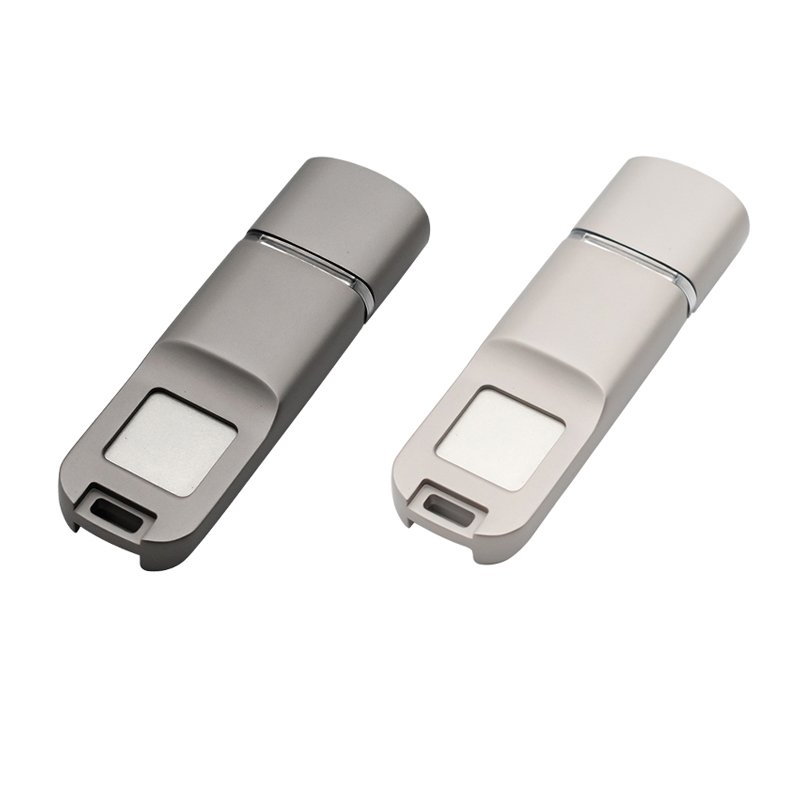
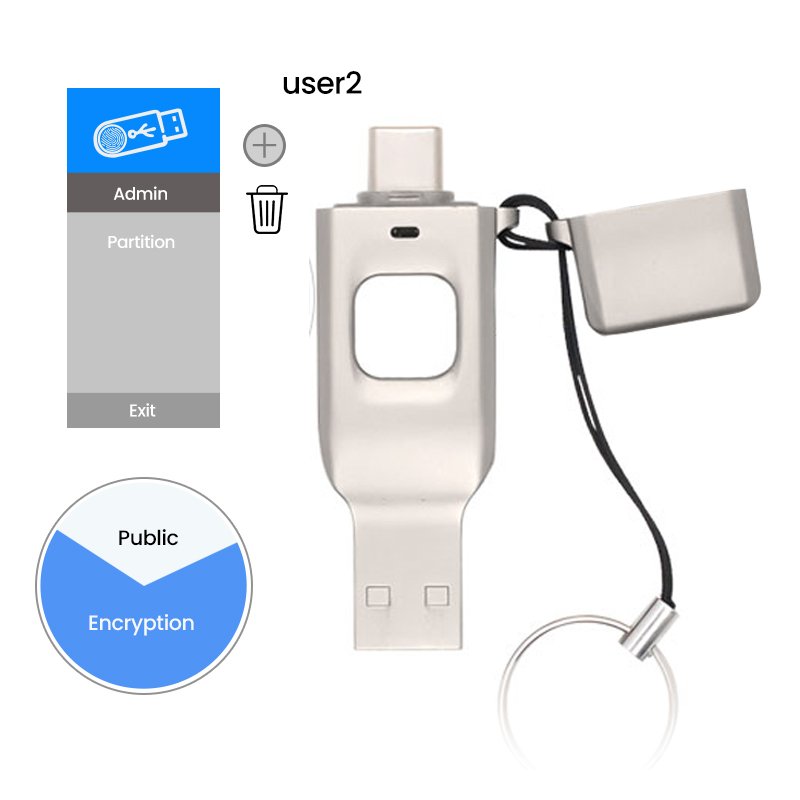
È una chiavetta che archivia i suoi contenuti sotto accesso biometrico tramite impronta digitale e crittografa tutte le informazioni, così solo le impronte registrate possono aprire e decrittare la chiavetta. Inserisci la chiavetta USB con impronta digitale nel computer o dispositivo mobile e segui le istruzioni della guida utente per partizionare la chiavetta e poi configurare l'account amministratore e la password. Ecco, ad esempio, le istruzioni per la chiavetta USB crittografata con impronta digitale di YOUSAN.
6. Consigli per un uso sicuro
- Scegli password complesse. Almeno 12 caratteri con una combinazione di tipi di caratteri.
- Conserva le chiavi di recupero separatamente. Non salvarle sulla stessa chiavetta USB.
- Mantieni il software aggiornato. Installa gli aggiornamenti del sistema operativo e le ultime versioni di VeraCrypt.
- Espelli in sicurezza. Usa sempre «Espelli» o «Rimozione sicura dell'hardware» prima di scollegare.
Crittografare la tua chiavetta USB garantirà la sicurezza dei tuoi file se la tua chiavetta viene persa o rubata. Clicca sul link appropriato per il tuo sistema operativo e segui questi passaggi per il processo di crittografia della tua chiavetta USB. Buona crittografia!

 Italiano
  English
  Español de México
  Deutsch (Österreich)
  Русский
  Français
  Türkçe
  Bahasa Melayu