
For music lovers, a reliable USB drive for storing music is an absolute must-have—whether for car audio playback, pairing with portable players, or expanding storage for smart speakers. But with so many options flooding the market, ranging from stylish designs to speed-focused models and audio-quality champions, newcomers can easily feel overwhelmed. Today, let’s dive into how to choose the perfect USB drive for your music collection.
1.What are the primary uses for music-storage USB drives?
Based on usage scenarios and design features, music-storage USB drives can be broadly categorized into four types, each with distinct suitability for specific contexts. Choosing according to your needs is the way to go:
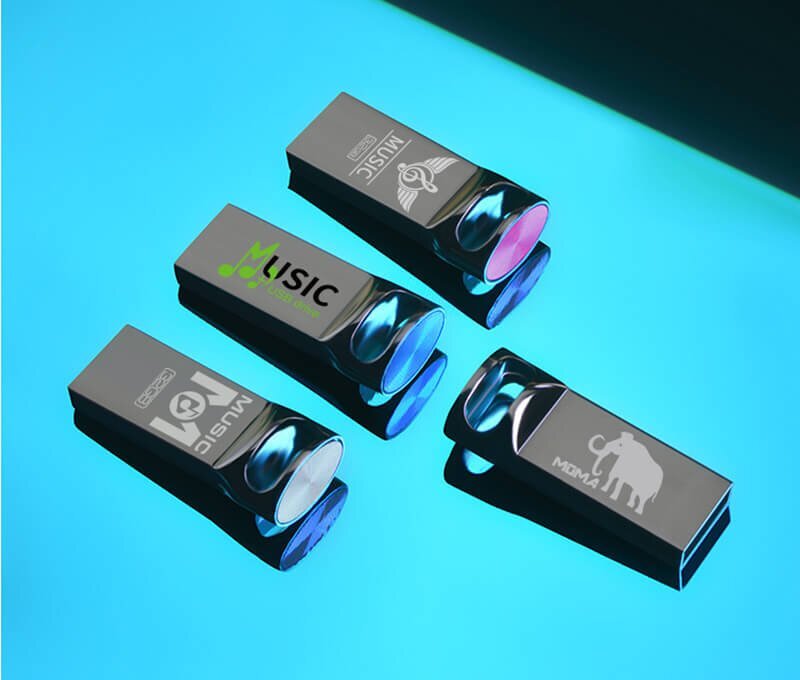
(1) Car-Specific Music USB Drives
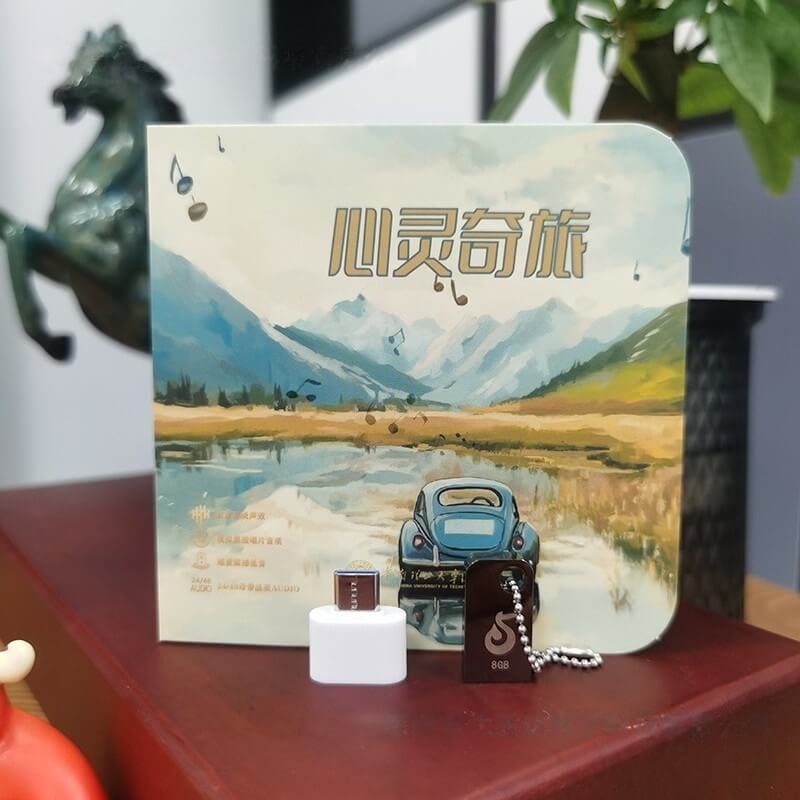
These mini music usb drives are tailored for automotive use, with compact size and durability as their core strengths. Typically very small (e.g., fingernail-sized), they fit flush into car USB ports to prevent accidental disconnection during driving. Their metal casings withstand high temperatures and vibrations, making them ideal for harsh in-car environments like summer heat and road bumps.
Some premium models come preloaded with popular car music playlists, ready to use out of the box. This is ideal for frequent drivers who enjoy listening to music and want to avoid the hassle of format conversion.
(2) Portable Music USB Drives
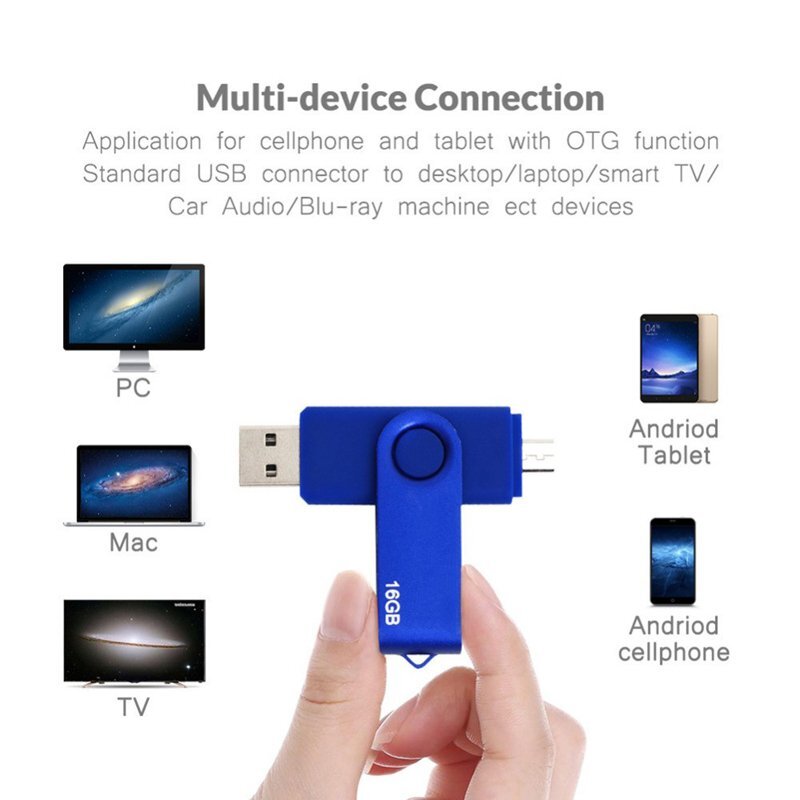
This is the most common type, designed for “multi-scenario adaptability.” Designs vary widely: sleek metal finishes, keychain-equipped anti-loss models (like Kingston DataTraveler), and colorful plastic options for personal style.
Most feature dual USB-A and Type-C ports, enabling direct music transfer to computers or playback on Android phones.
Some are compatible with OTG-enabled devices. Capacities range from 64GB to 256GB, meeting music needs for daily commutes or outdoor picnics while offering the best value.
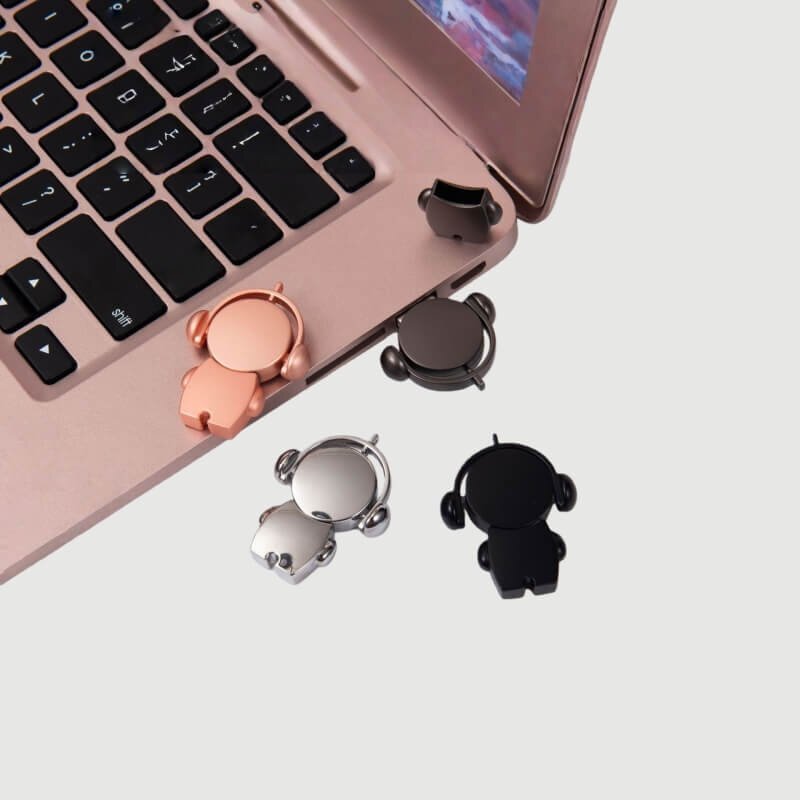
(3) Retro-Style Music USB Drives
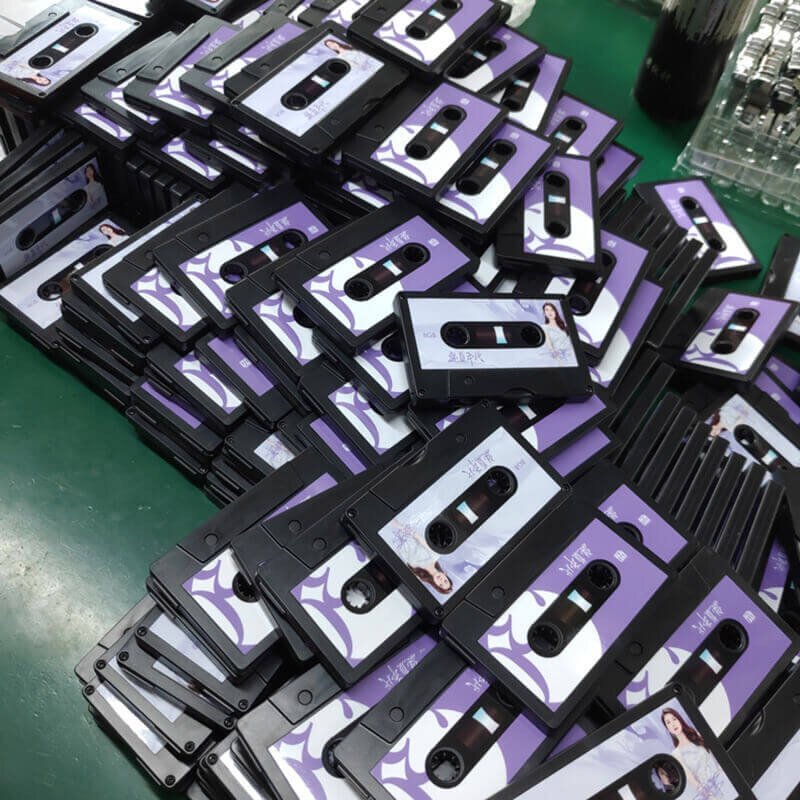
Specifically designed for retro music devices like vintage MP3 players or modified cassette players. Often shaped like Cassette USB Flash Drives or vinyl records for nostalgic appeal.
Primarily equipped with USB 2.0 ports (compatible with older devices), though some retain USB 3.0 high-speed ports for efficient music transfers.
Capacities typically range from 32GB to 128GB, ample for storing classic song collections. If you own vintage playback devices or simply appreciate retro aesthetics, these drives are an excellent choice—examples include the U-Flash Cassette Drive.
(4) Professional Lossless Music USB Drives
Tailored for lossless audio enthusiasts, their core strengths lie in “high capacity + exceptional stability.” They utilize original manufacturer flash memory chips (e.g., Samsung V-NAND, Toshiba BiCS) for fast read/write speeds and extended lifespan, reliably storing large lossless audio files like FLAC and WAV. Capacity starts at 256GB and reaches up to 1TB. Some models feature hardware encryption to protect valuable music collections, making them ideal for audiophiles with extensive lossless music libraries demanding high storage stability.
2.What requirements must a USB drive used for storing music meet?
Storing music may seem simple, but choosing the wrong format can lead to playback stuttering, file corruption, and other issues. Keep a close eye on these core metrics:
(1)Ports and Speed: USB 3.0 is the Minimum Requirement
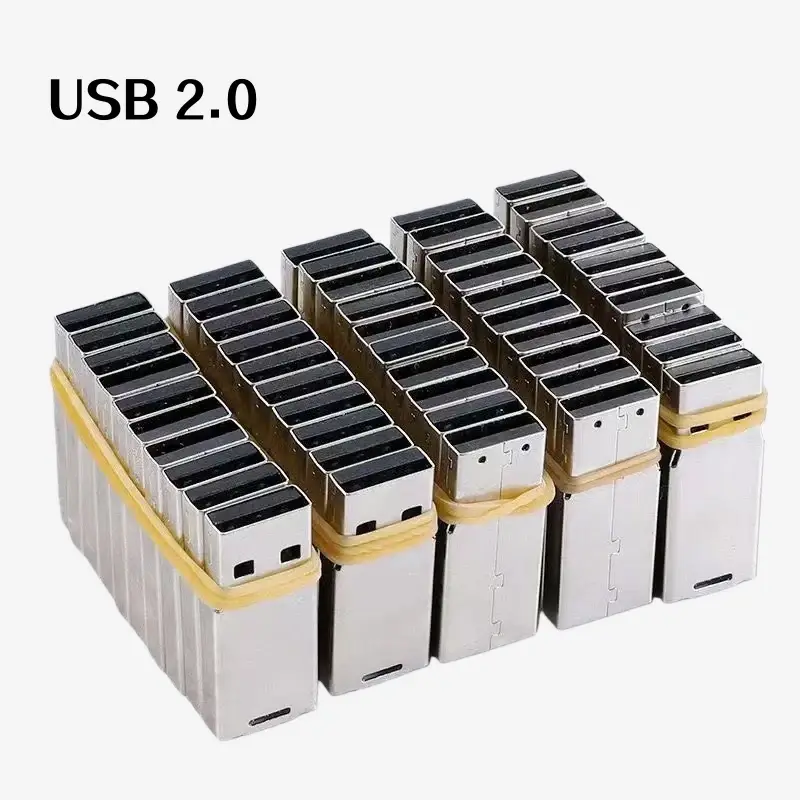
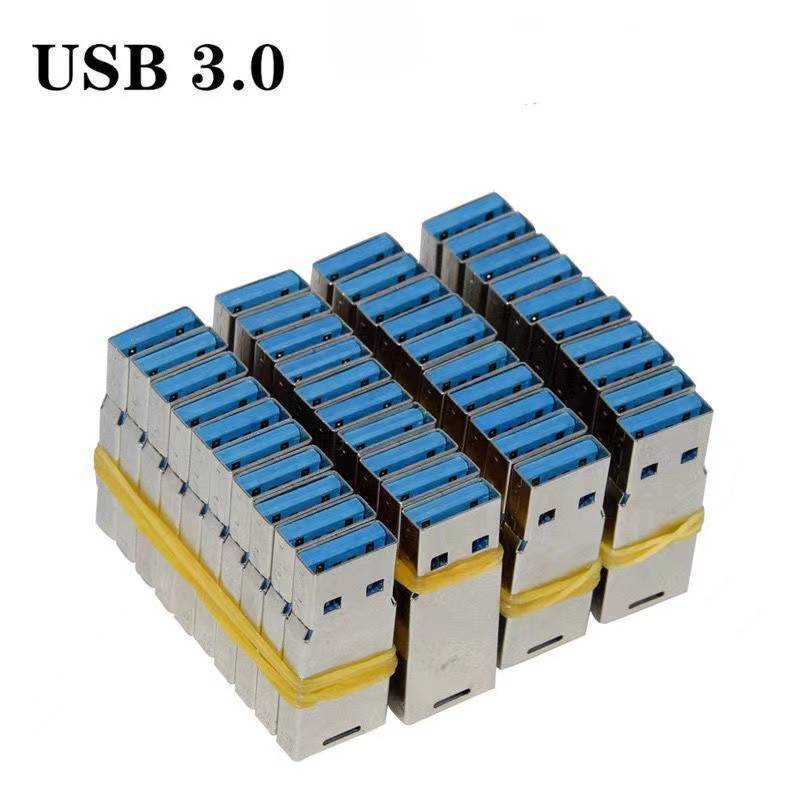
Speed directly impacts file transfer efficiency and playback smoothness. Prioritize USB 3.2 Gen1 (formerly USB 3.0) or higher ports, which offer theoretical transfer speeds up to 5Gbps. Actual read speeds typically exceed 100MB/s, allowing a 500MB lossless music file to copy in seconds. Opting for USB 2.0 ports will result in agonizingly slow large file transfers and may cause stuttering during high-definition audio playback. Note: The blue connector is the signature feature of USB 3.0, making it easily identifiable during purchase.
(2)Capacity: Choose Wisely Based on Music Format
Larger isn’t always better—it depends on your music format:
For MP3-heavy collections (approx. 3-5MB per track), 32GB stores 6,000-10,000 songs, sufficient for most users. For lossless music (FLAC/WAV: ~20-50MB per track), opt for 128GB or higher. A 256GB drive holds around 5,000 lossless tracks, eliminating frequent deletions to free space. The 2025 mainstream recommendation starts at 128GB USB flash drive—offering the best value and sufficiency for years ahead.
(3)Flash Memory Chips & Durability: OEM Chips Are More Reliable
The flash memory chips are the “soul” of a USB drive, directly determining its lifespan and stability. Prioritize products using original manufacturer chips like Samsung V-NAND, Toshiba BiCS, or Micron 3D NAND. These chips offer stable read/write performance and extended endurance, minimizing file corruption risks when storing music. Avoid generic brands using unbranded chips—while cheaper, they may fail (“drive drop”) and become unrecognizable after just a few months. Regarding casing, metal construction outlasts plastic and offers superior heat dissipation, making it ideal for frequent insertion and removal.
(4)Compatibility: Match Your Playback Device
Different devices have varying USB drive requirements, so verifying compatibility beforehand is crucial:
Car infotainment systems typically support the FAT32 file system, but limit individual files to 4GB. For storing large lossless music files, format the drive to exFAT (confirm your car system supports this). Android phones require OTG-compatible USB drives; Type-C or dual-port (Type-A + Type-C) designs offer greater convenience. Apple devices necessitate MFi-certified Lightning adapters or Apple-specific USB drives.
3.Avoid These Pitfalls: Never Buy These 3 Types of USB Drives, No Matter How Cheap They Are
The USB flash drive market is full of pitfalls, with many sellers playing “word games” to deceive newcomers. Avoid these three types of products:
This is the most common scam—using software to disguise 8GB or 16GB drives as 64GB or 128GB models, priced over half cheaper than genuine products. Initially, they seem functional, but once stored files exceed the actual capacity, issues arise: files become corrupted, fail to open, or the drive may even become completely unusable. How to spot them: Use tools like MyDiskTest to verify actual capacity, or directly copy a large file that fills the drive. If errors occur midway, it’s definitely an over-capacity drive.
(2)No-name drives labeled only as “high-speed” without specific parameters
Some sellers advertise “USB 3.0 high-speed” without specifying read/write speeds. These drives may indeed use USB 3.0 ports but employ low-quality chips, resulting in actual write speeds of just 10-20MB/s—slower than USB 2.0 when copying lossless music. Always check the spec sheet when purchasing. Prioritize models with sequential write speeds ≥30MB/s. If the seller doesn’t list this, skip it.
(3)“Sound Quality Enhancement” products that are a rip-off
Some sellers claim their USB drives have “professional audio decoding chips” that improve music quality—this is pure marketing hype! USB drives are fundamentally storage devices responsible only for file read operations. Audio quality depends on the source material (e.g., lossless format), playback equipment (headphones/speakers), and decoding chips—not the drive itself. Instead of spending extra on “high-fidelity USB drives,” invest the savings in higher-quality audio sources.
4.FAQ
When storing music on a USB drive, you’re bound to encounter various minor issues. Here are solutions for these common problems:
(1)Music files won’t play on the device?
First, check two points: First, format incompatibility—for example, car systems may not support FLAC. Use tools like Format Factory to convert to MP3 or WMA. Second, file system issues—car devices may not recognize NTFS format. Format the drive to FAT32 or exFAT (Note: FAT32 doesn’t support files larger than 4GB). If playback still fails, the USB drive partition may be corrupted. Reformatting should resolve it.
(2)USB drive transfer speed suddenly slows down?
Most likely caused by these two reasons: First, the USB drive is nearly full—transfer speeds significantly slow when free space drops below 10%. Delete infrequently used files promptly. Second, file fragmentation occurs, especially after frequent song deletions or edits. Right-click the USB drive on your computer, select “Properties > Tools > Optimize,” and defragment to restore speed. If using an older USB drive, it may be due to aging components—consider replacing it.
(3)Phone/Car Device Fails to Recognize USB Drive?
Troubleshoot by device: – Android phones: Ensure OTG functionality is enabled (usually under Settings > More Connections).
Without OTG, recognition won’t work. – Car devices: Check if the USB port is loose. Try a different port. If still unrecognized, the USB drive format might be incompatible. Reformat it to FAT32 and try again. – Apple devices: Verify the adapter is MFi-certified.
Non-certified accessories often cause recognition issues.
(4)How to organize music files on a USB drive for clarity?
Organize folders hierarchically by “Genre-Artist-Album,” e.g., “Pop Music/Jay Chou/Seven Fragrant Flowers.” This allows quick song selection during playback. For in-car use, categorize by “driving scenarios” like “Commute: Upbeat” or “Long Drive: Relaxing” to enhance the driving experience.
YOUSAN USB Flash Drive Factory Recommendation: When customizing a music USB drive, first define your use case (car, portable, retro, or professional lossless). Then focus on four core metrics: interface speed, original-manufacturer flash memory, capacity compatibility, and device compatibility. Avoid over-capacity drives, no-name drives with vague specs, and “sound quality enhancement” products that are just a waste of money. A reliable music USB drive doesn’t need fancy features—stable storage, fast transfer speeds, and compatibility with your devices make it the best companion for music lovers.

 English
  Español de México
  Italiano
  Deutsch (Österreich)
  Русский
  Français