
A USB memory business card is a credit-card-sized flash drive that carries your files and your brand at the same time: it slides into a wallet like a normal business card, then plugs straight into any computer’s USB port. YOUSAN manufactures custom flash drive business cards with full-surface logo printing, 1GB–256GB capacities, USB-A or USB-C connectors, and factory-direct bulk pricing. Also known as a business card jump drive, it is one of the highest-retention trade show and corporate gifts you can hand out — and this guide covers how to use it on PC and phone.
What Is a Business Card (Card-Style) USB Flash Drive?
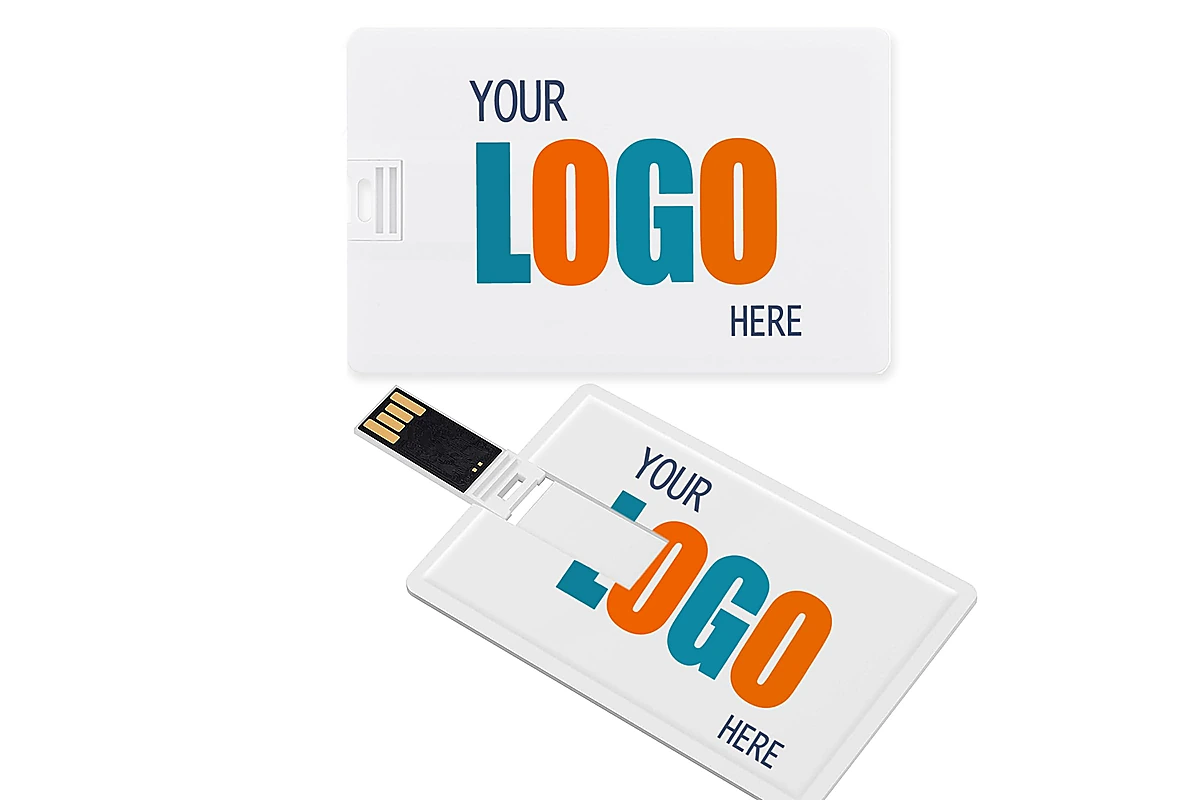
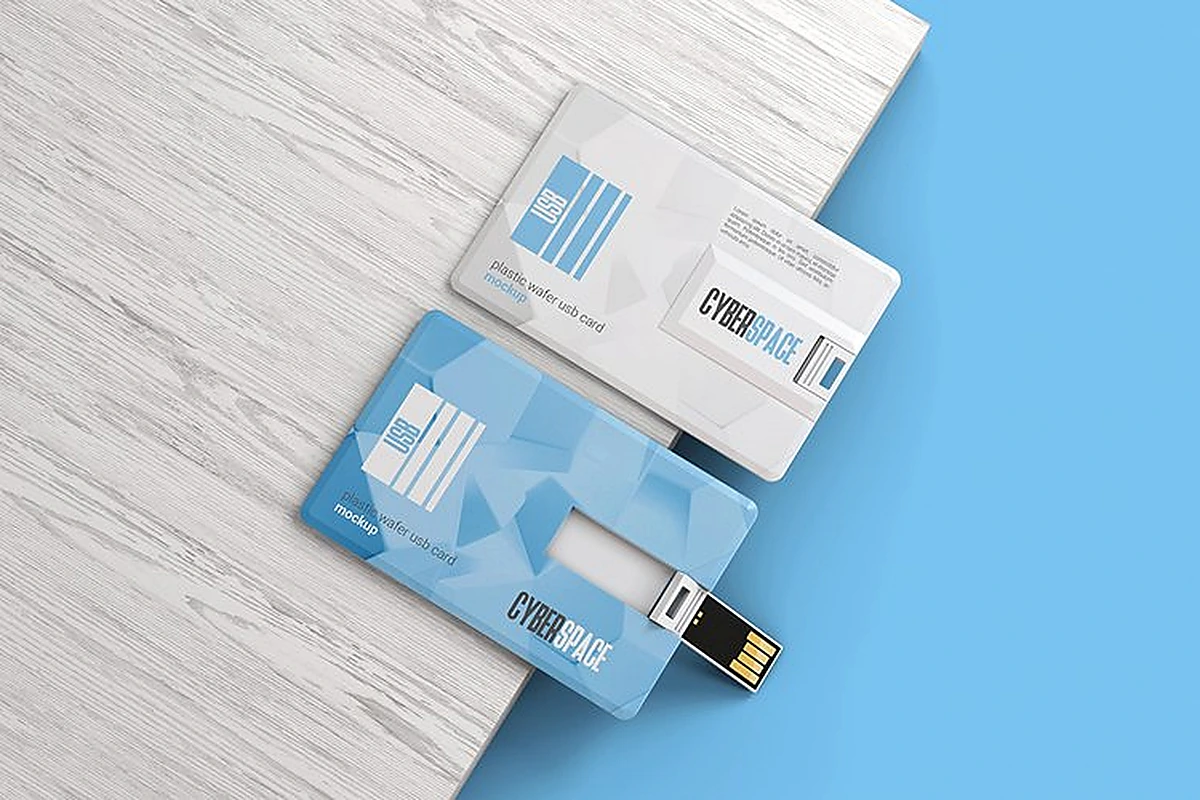
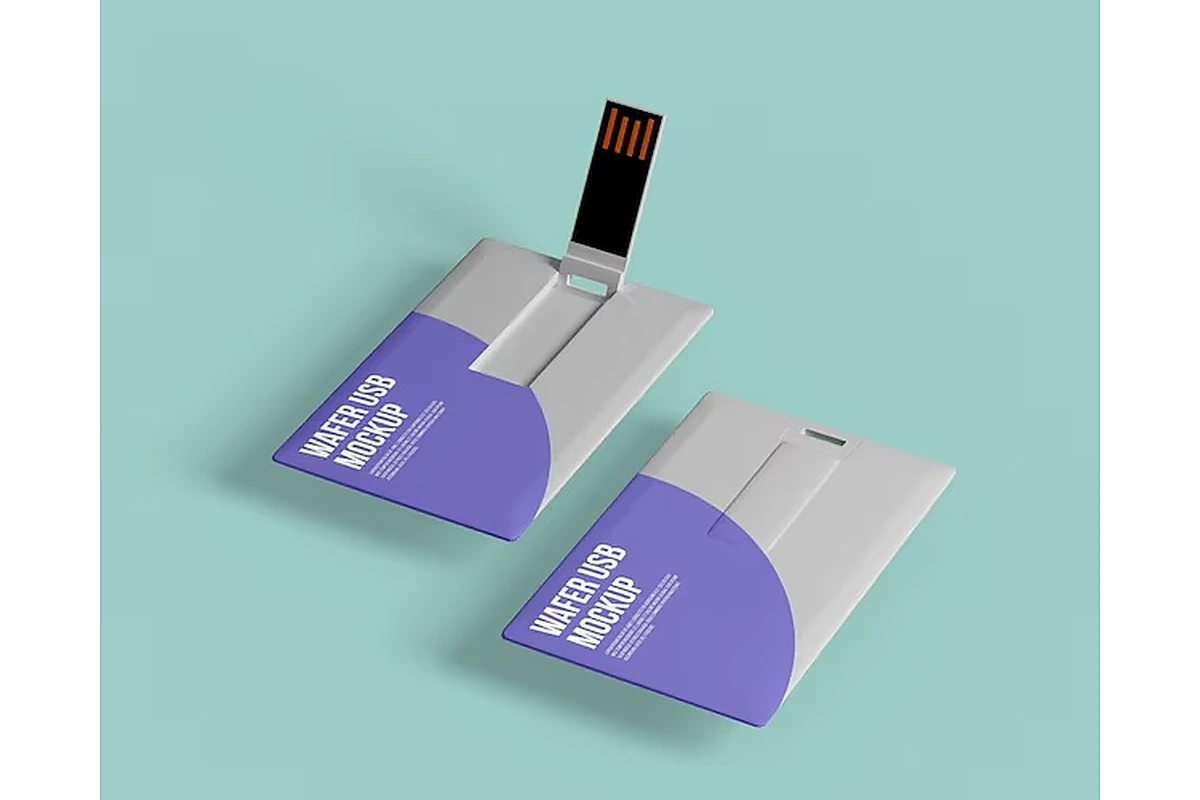
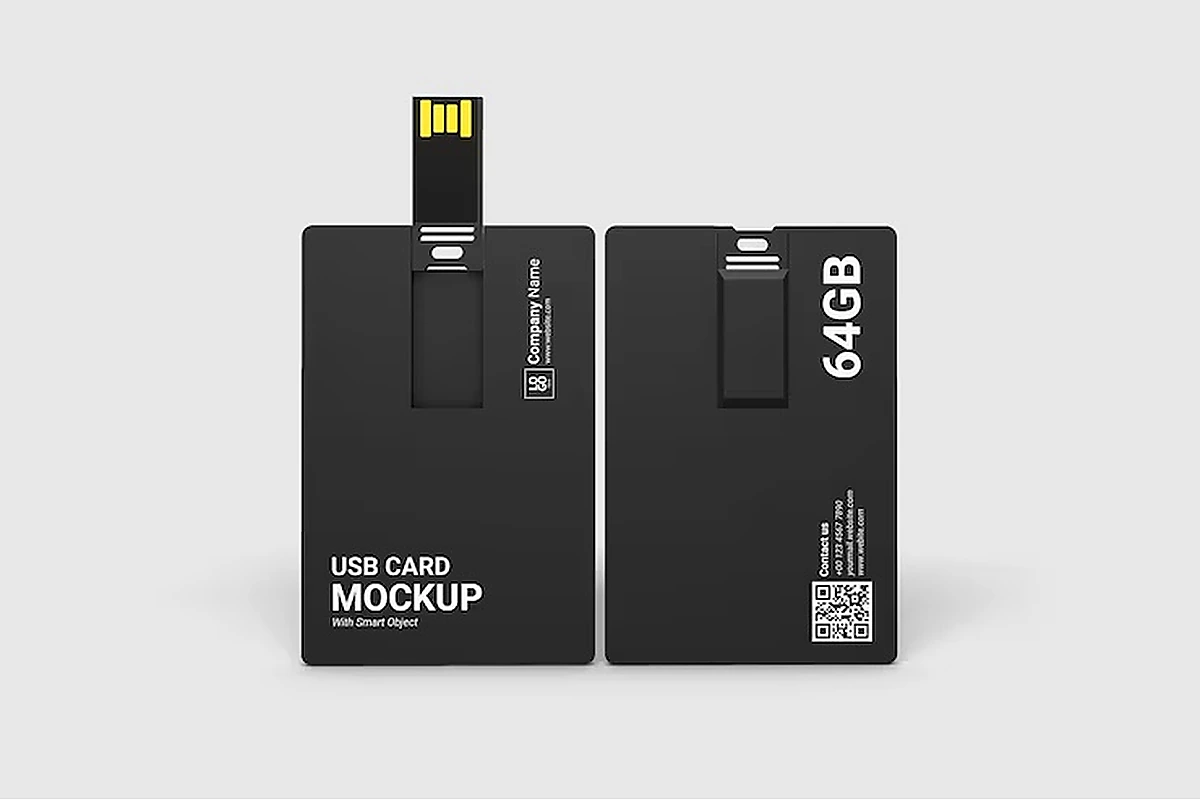
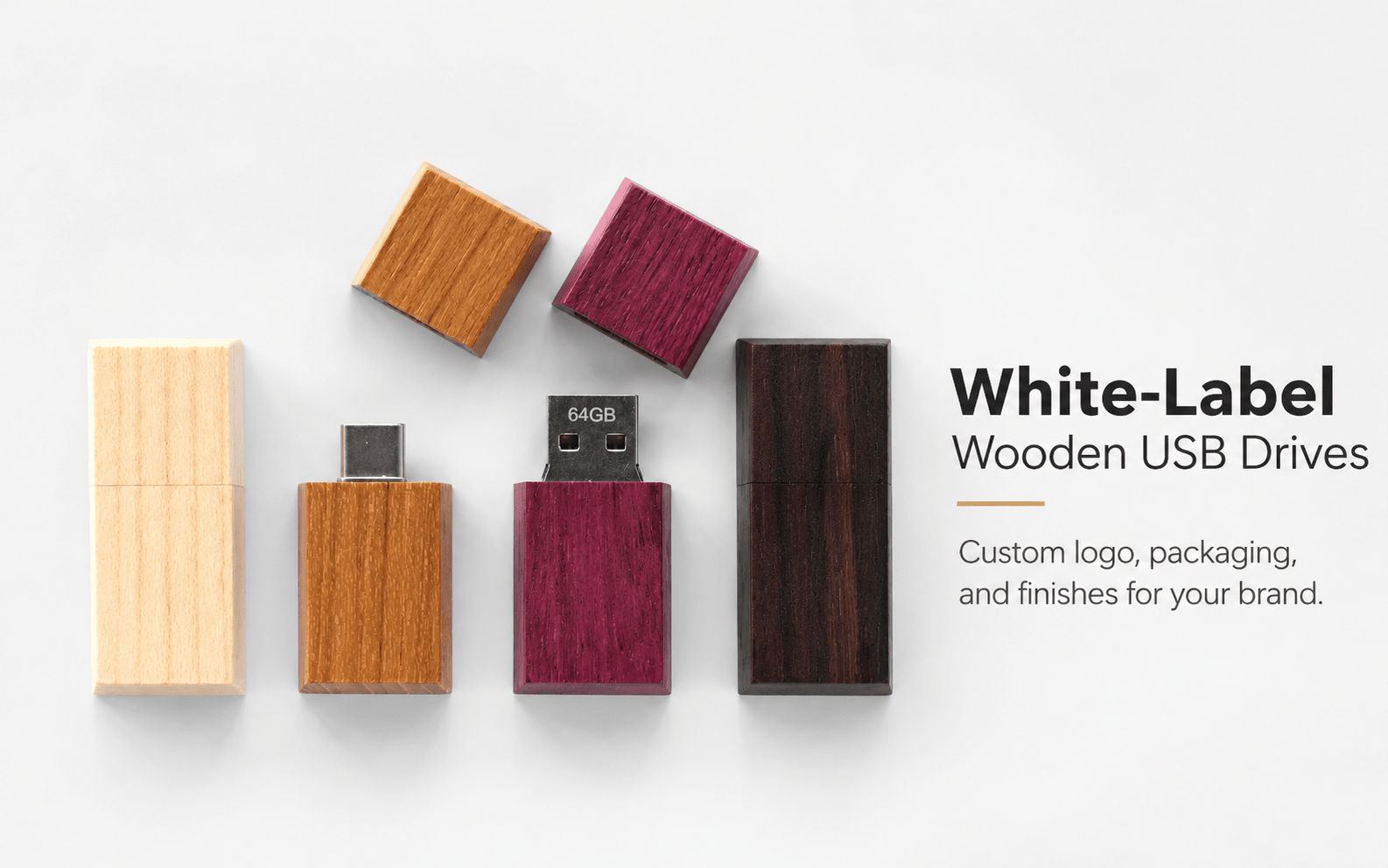
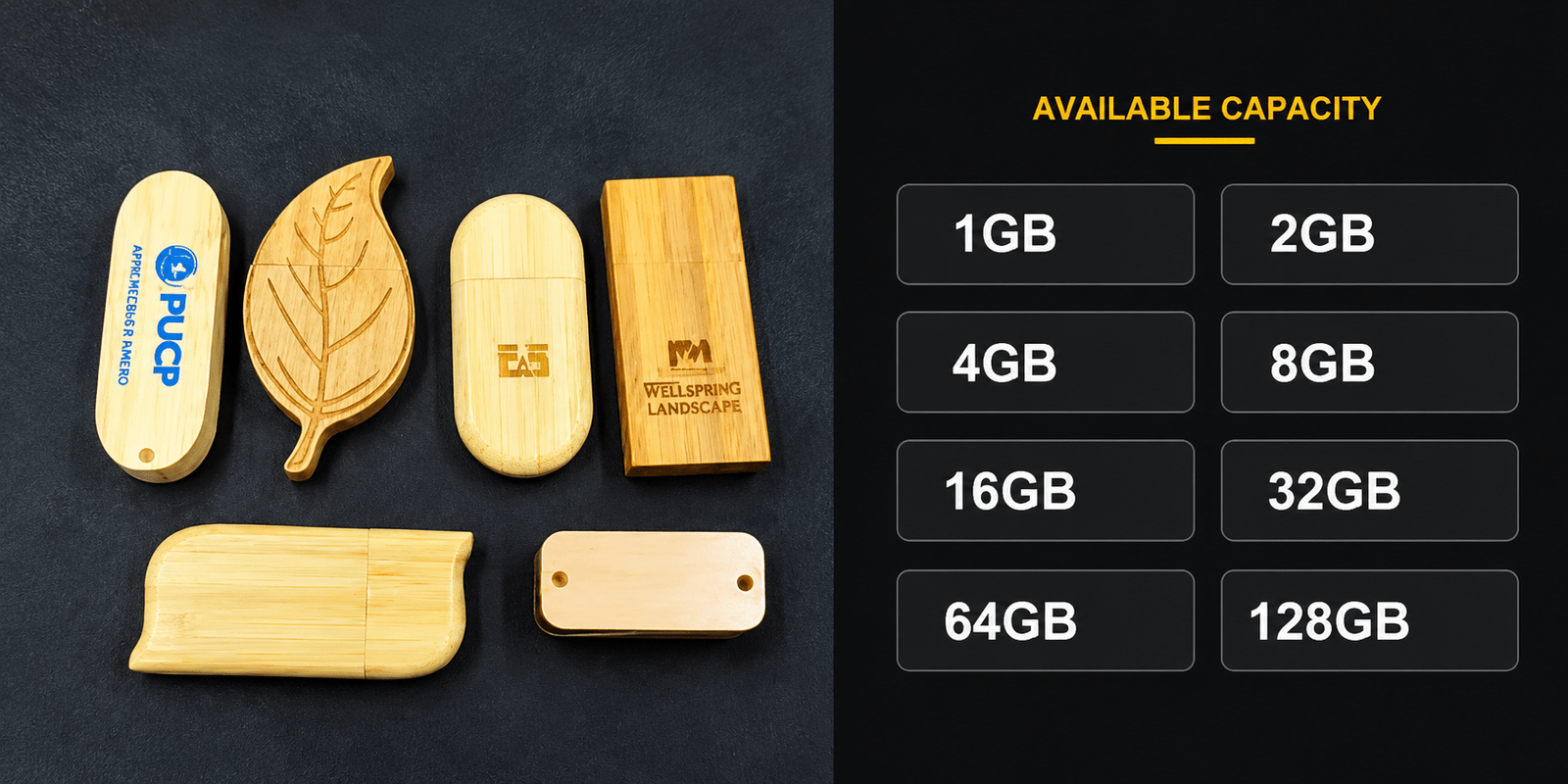
Unlike a standard stick-shaped flash drive, a card-style drive is built flat and thin so it fits in a wallet, badge holder, or card case the same way an actual business card or credit card does. Most designs use a flip or push-pull mechanism to expose the USB connector, keeping it protected the rest of the time. YOUSAN’s card-style USB flash drive line is available in plastic, metal, wood, and biodegradable material options, with capacities commonly ranging from 1GB up to 256GB and both USB 2.0 and USB 3.0 interfaces depending on the model worth checking specifically if transfer speed matters for your use case, since 3.0 is meaningfully faster for larger files.
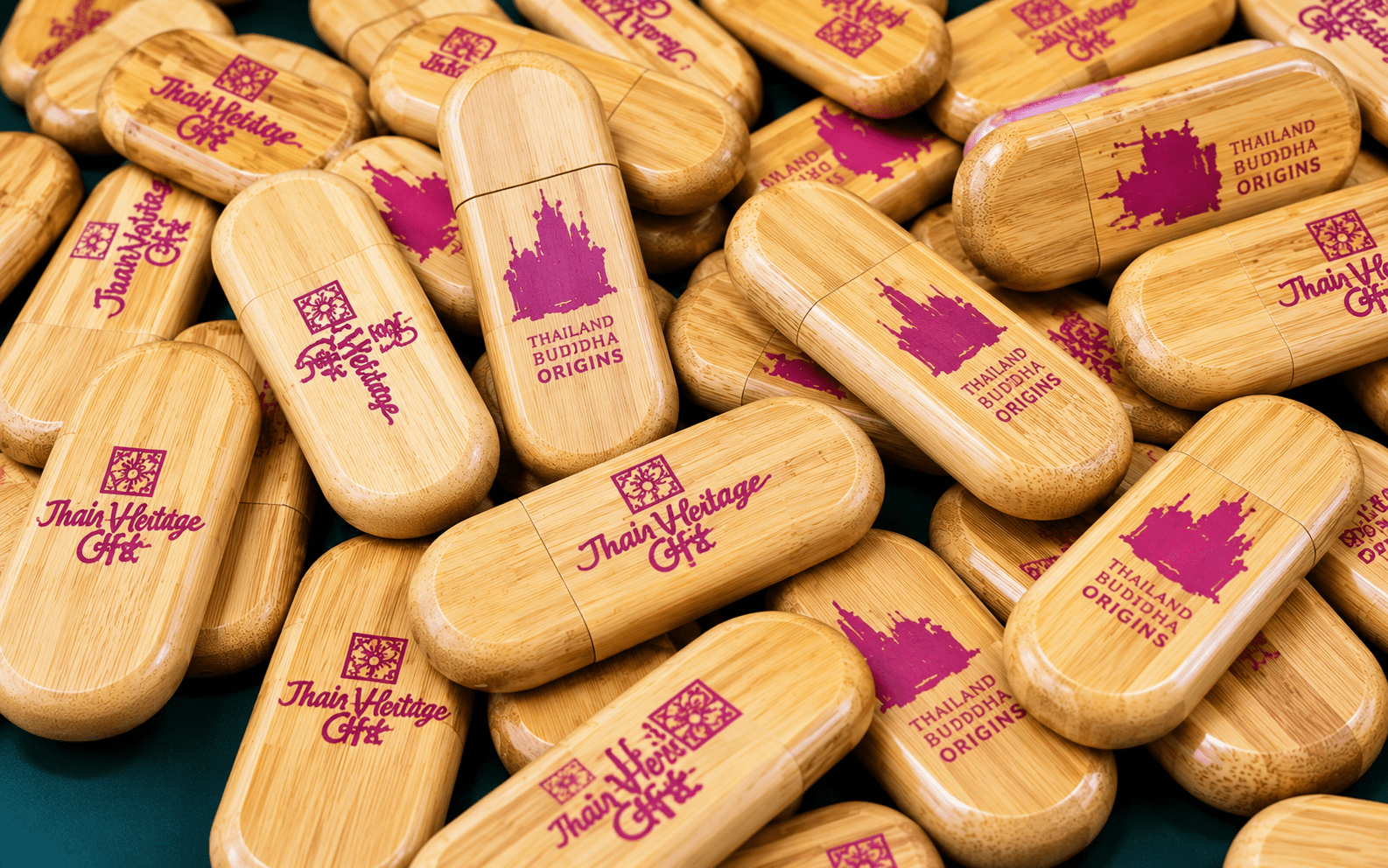
The format’s main appeal for business use is the large, flat printable surface full-color UV printing, screen printing, laser engraving, or an embossed logo all read clearly on a card face in a way they don’t on a narrow drive body, which is why this shape is popular for corporate gifting and trade show giveaways specifically.
Where Does a Card-Style Drive Actually Get Used?
As a personal storage device, a card USB drive works exactly like any other flash drive once connected it shows up as a removable disk, and files can be copied, moved, or deleted the same way. The card format’s advantage here is purely that it survives being carried daily in a wallet better than a stick-style drive dropped loose into a bag.
As a branded business giveaway, the format is commonly preloaded with a company catalog, portfolio, presentation deck, or contact details, then handed out at trade shows, included in onboarding kits, or given as a networking follow-up in place of (or alongside) a paper business card. YOUSAN’s data preloading service can load files with options like copy protection or read-only locking, which matters if the drive is meant to distribute fixed marketing content rather than serve as reusable storage for the recipient.
How Do You Use a Card-Style USB Flash Drive on a Computer?
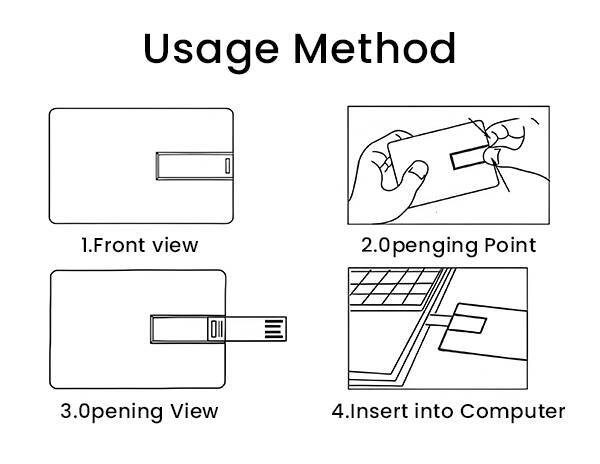
- Insert the drive into any available USB port Windows and macOS will both detect it automatically within a few seconds.
- Locate the drive in File Explorer (Windows) or Finder (macOS), where it will appear as a removable disk with an assigned drive letter or name.
- Transfer files by dragging and dropping, or using standard copy-and-paste the drive behaves identically to any other USB storage device once mounted.
- Eject safely using the “Safely Remove Hardware” option on Windows or dragging the drive icon to Eject on macOS before physically unplugging it, which reduces the risk of file corruption on the drive.
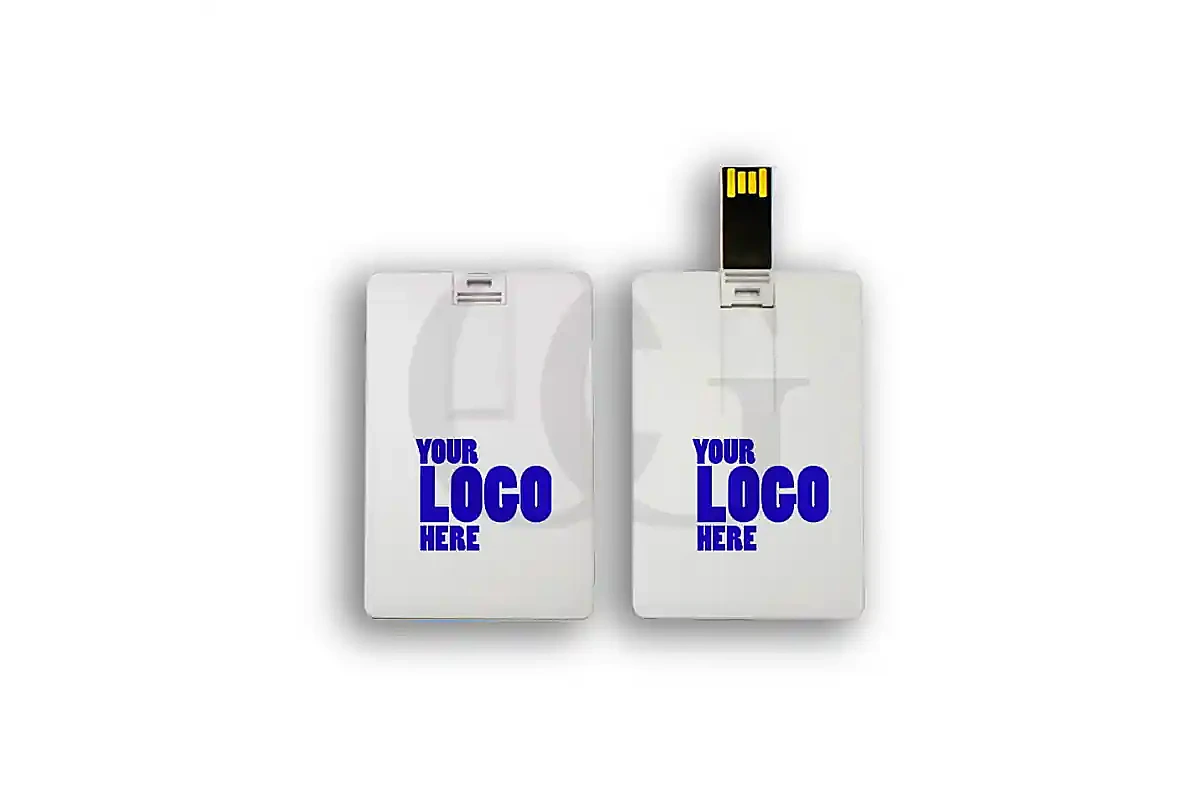
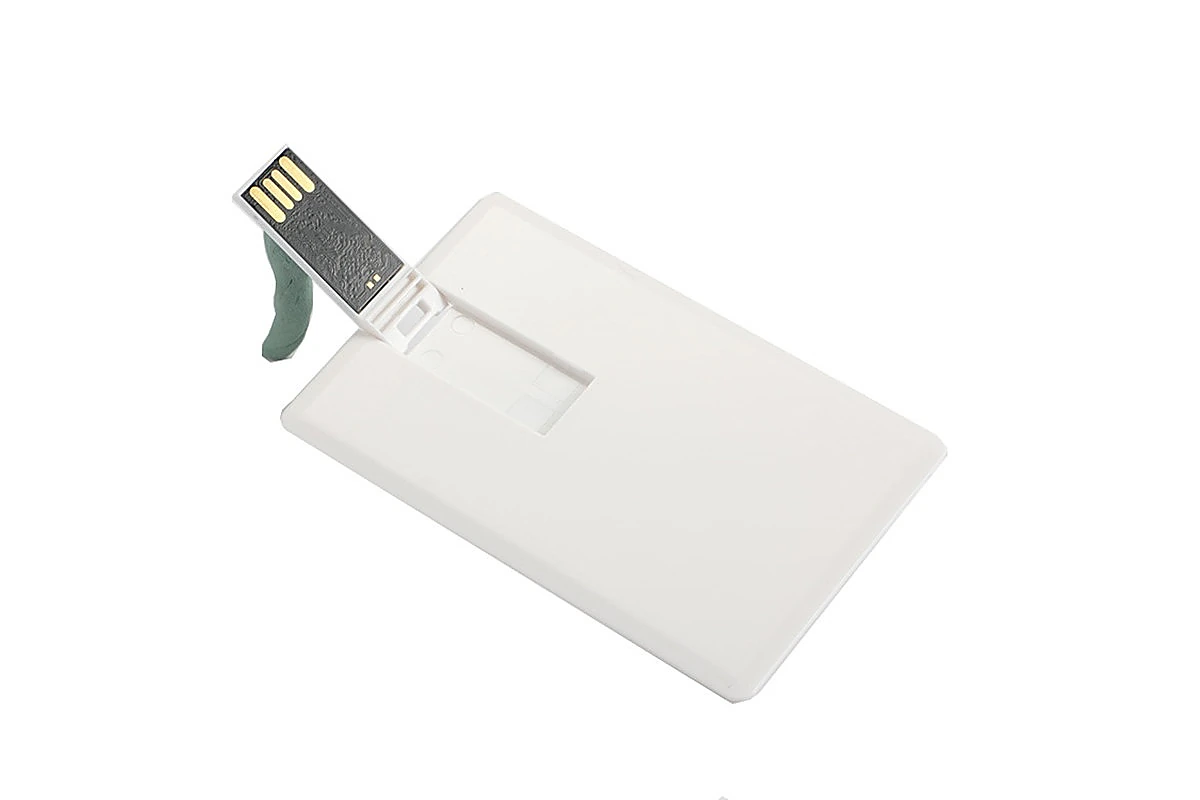
Flip out the connector, insert the card drive into the computer’s USB port, and wait for it to appear as removable storage.
How Do You Use a Card-Style USB Flash Drive on a Phone?
Using a card-style drive on a phone depends on the connector and the phone’s own port, since not every card drive is phone-compatible out of the box.
On Android, a drive with a USB-C connector (or a USB-A card drive paired with a USB-C OTG adapter) can typically be plugged in directly. The phone should prompt to open a file manager app automatically, or one can be opened manually to browse, copy, or move files between the phone’s internal storage and the drive.
On iPhone, compatibility depends on the drive having a Lightning or USB-C connector matching the phone’s port (or, on older Lightning-only iPhones with a USB-A card drive, an adapter that supports OTG not all adapters do). Once connected, files can be managed through the Files app, which will show the drive as an external storage location.
Before buying or ordering for a mobile use case specifically, confirm the exact connector type needed a growing share of card-style drives now ship with USB-C or dual USB-A/USB-C designs specifically because of how common OTG phone use has become, so it’s worth checking that detail rather than assuming any card drive works with any phone.
What Should You Check Before Buying or Ordering in Bulk?
| Factor | What to Confirm | Why It Matters |
|---|---|---|
| Connector type | USB-A, USB-C, or dual | Determines direct phone compatibility without an adapter |
| Capacity | 1GB–256GB range | Match to actual preload size or personal storage need, not a round default number |
| USB version | 2.0 or 3.0 | 3.0 transfers meaningfully faster for larger files |
| Material | Plastic, metal, wood, biodegradable | Affects branding method, durability, and cost per unit |
| MOQ (for bulk/custom orders) | Standard vs. custom-mold minimums | Custom shapes typically require a higher minimum than standard card designs |
| Logo method | UV printing, screen printing, laser engraving, embossing | Full-color designs need UV printing; single-color logos can use lower-cost screen printing |
How Does a Card-Style Drive Compare to a Standard Stick Drive?
The card format isn’t strictly better or worse than a traditional stick-shaped drive it’s a different trade-off. A standard stick drive is generally more compact for keychain or laptop-bag carry and often available in higher capacities at a lower cost per gigabyte, since the casing doesn’t need to accommodate a wallet-friendly flat shape. A card-style drive trades some of that capacity headroom for a much larger printable surface and a form factor that survives being carried the way an actual card is carried in a wallet, badge holder, or card case, rather than loose in a bag pocket where a stick drive is easier to misplace.
For a branded giveaway specifically, the card format tends to get better real-world retention: recipients are more likely to keep something that fits where they already keep cards than a stick-shaped item with no obvious “home.” For a buyer prioritizing maximum storage at the lowest cost with no branding requirement, a standard stick drive is usually the more efficient choice.
What Packaging and Presentation Options Are Available for a Bulk Order?
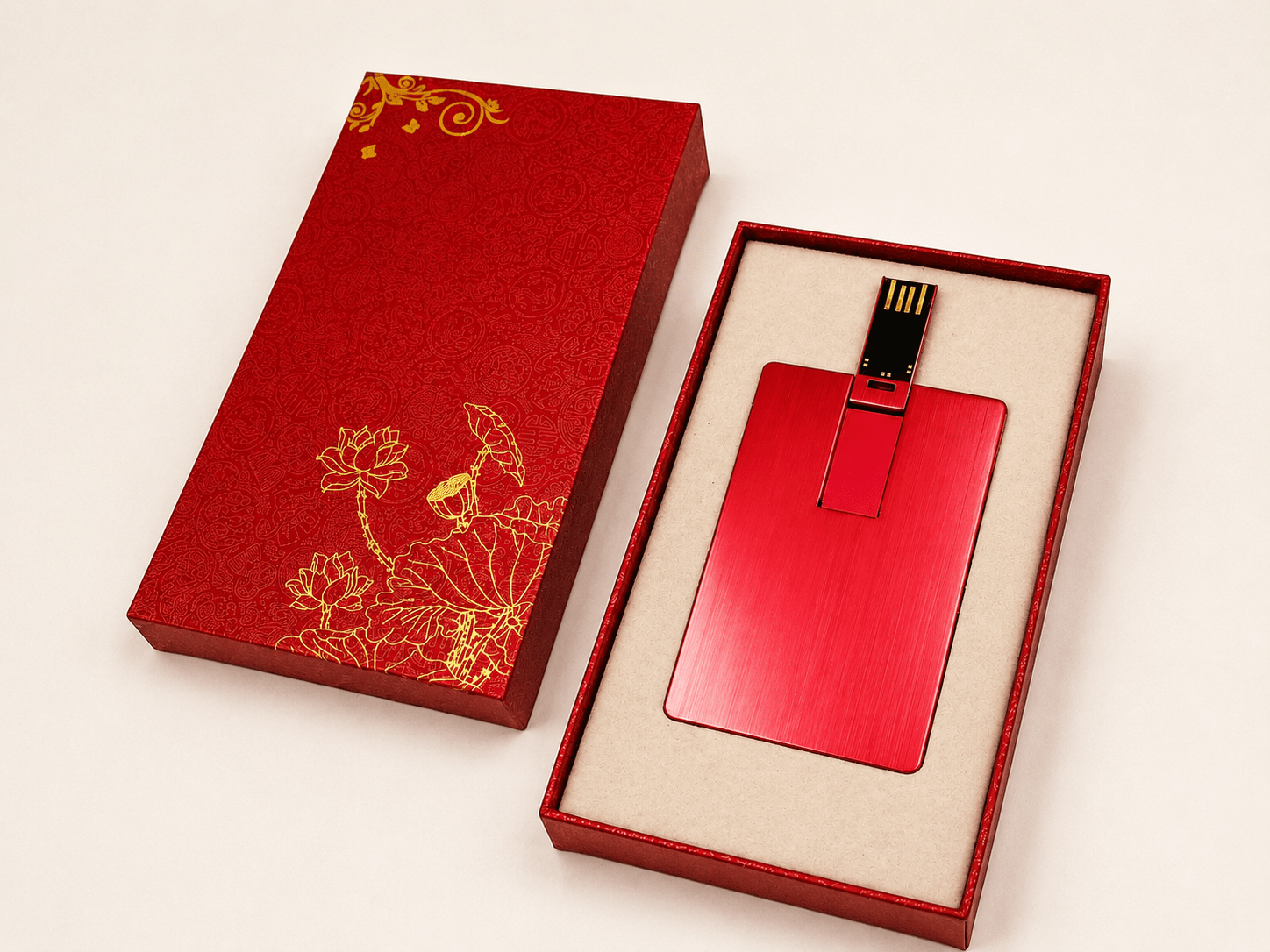
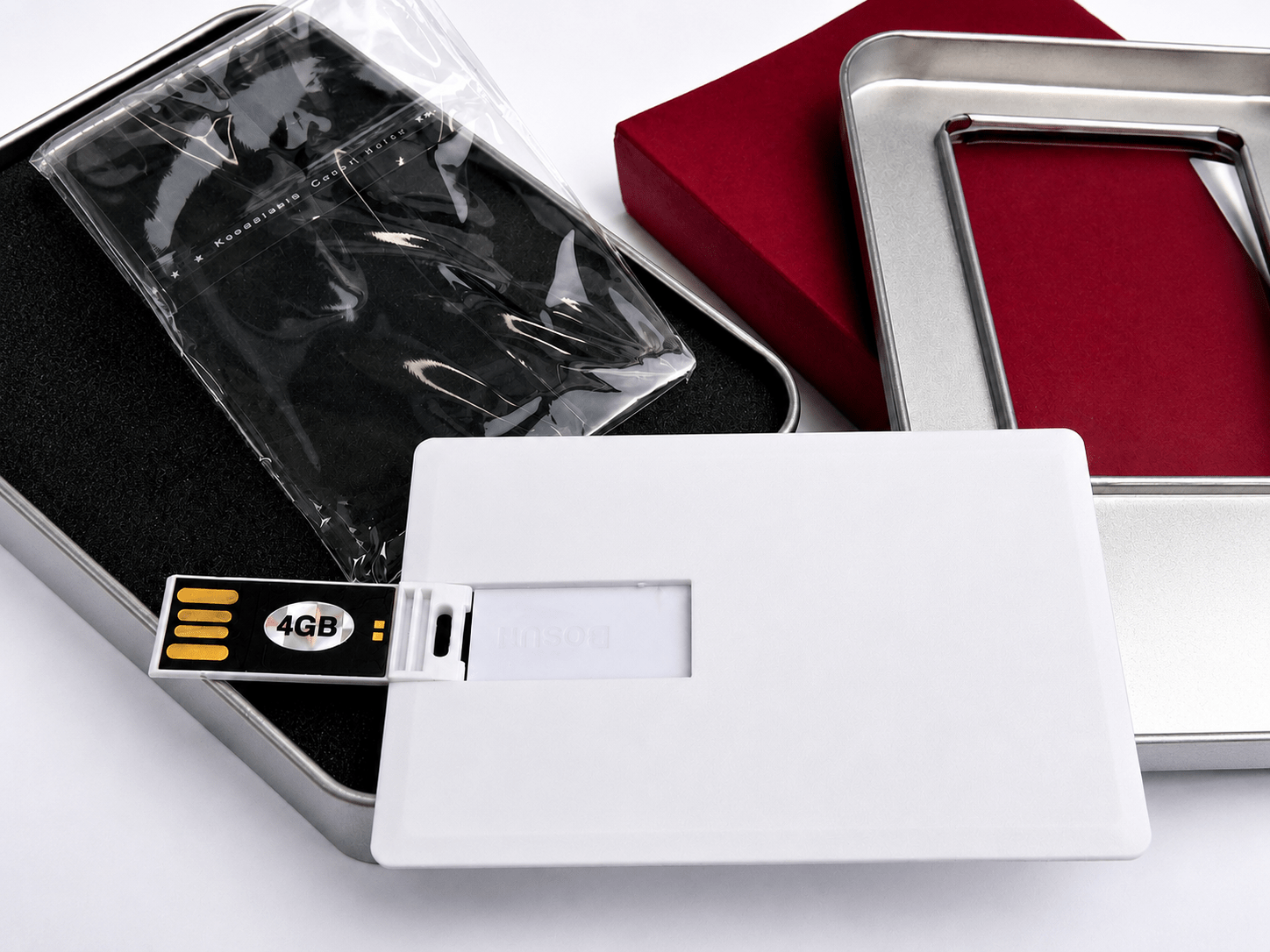
Packaging affects both the recipient’s first impression and the shipping cost, so it’s worth deciding deliberately rather than defaulting to whatever a quote assumes. Common options for card-style drives include a simple poly bag (lowest cost, suited to trade-show mass handouts where presentation matters less than volume), a paper sleeve or box (a step up in perceived value for onboarding kits or client gifts), a tin box or magnetic box (higher-end presentation for VIP gifts or product launches), and full gift sets that pair the drive with other branded items.
It’s worth confirming packaging choice before finalizing a quote, since box-style packaging adds meaningfully to per-unit shipping weight and cost at scale a detail that’s easy to overlook when comparing quotes that only show the drive’s unit price.
What Mistakes Do Buyers Commonly Make With Card-Style Drives?
Assuming any card drive works with any phone. Connector mismatch is the most common frustration reported with this format confirm USB-C compatibility specifically if the drive needs to work with a modern Android phone or a newer iPhone without carrying a separate adapter.
Ordering a capacity larger than the actual use case needs, especially for a preloaded marketing giveaway where the content might only be a few hundred megabytes. YOUSAN’s storage capacity guide breaks down which tier fits which use case, whether that’s a lightweight preloaded catalog or genuine multi-gigabyte working storage.
Skipping the physical sample step on a bulk order. Approving a card design from a digital mockup rather than a physical sample is a common way a logo placement or color issue makes it into a finished production run always request a physical or pre-production sample before committing to full quantity.
Not confirming MOQ for the exact design. Standard card templates and fully custom mold shapes typically carry different minimum order quantities get the number confirmed for the specific design before budgeting a bulk order.
Frequently Asked Questions
Can a business card USB flash drive work on both a computer and a phone?
Yes, as long as the connector matches most card-style drives plug directly into a computer’s USB-A or USB-C port, while phone use requires either a matching connector (USB-C on newer Android and iPhone models) or an OTG adapter for older USB-A-only designs.
What capacity should I choose for a card-style USB drive?
It depends on the use case: a few hundred megabytes to 2GB is generally enough for a preloaded catalog or presentation deck used as a marketing giveaway, while 16GB–32GB suits general personal or business file storage. Larger capacities (64GB and up) are more relevant if the drive is meant as everyday working storage rather than a branded handout.
Do card-style USB drives support USB 3.0 speeds?
Many do, though not all it depends on the specific model and chip used. If transfer speed matters for your use case (larger files, video content), confirm USB 3.0 support specifically rather than assuming it, since some budget or ultra-thin card designs use USB 2.0.
What's the minimum order quantity for custom-branded card USB drives?
MOQs vary depending on whether the design uses a standard card template or requires a custom mold, with standard designs generally carrying a lower minimum than fully custom shapes. Confirm the exact figure for your specific design and branding method before planning a bulk order.
Is a card-style USB drive durable enough for everyday carry?
Reasonably, yes, particularly with a flip or push-pull mechanism that protects the connector when not in use though as with any flash drive, avoiding excessive bending, moisture, and extreme heat will extend its usable life regardless of material.
 English
  Español de México
  Italiano
  Deutsch (Österreich)
  Русский
  Français
  Türkçe
  Bahasa Melayu